
The Unfiltered Standard
"Guardian Protocol provides server-side monitoring that exceeds standard corporate safety policies. We don't just track; we guard."
To ensure 100% autonomy from ecosystem restrictions and prevent remote deactivation, we deliver the protocol directly to your hardware.
- Zero Corporate Surveillance
- Immune to App Store Takedowns
- Direct Hardware-to-Server Link
- Unrestricted Emergency Logic
1. Select Model
Don't see your model? Contact support via the bot.
How to Install (Sideload Guide)
Connect Watch to PC/Mac
Plug your Garmin into your computer. It should appear as a Removable Drive.
Deploy the File
Copy the downloaded .prg file and paste it into the /Garmin/Apps/ folder on your watch storage.
Eject & Link
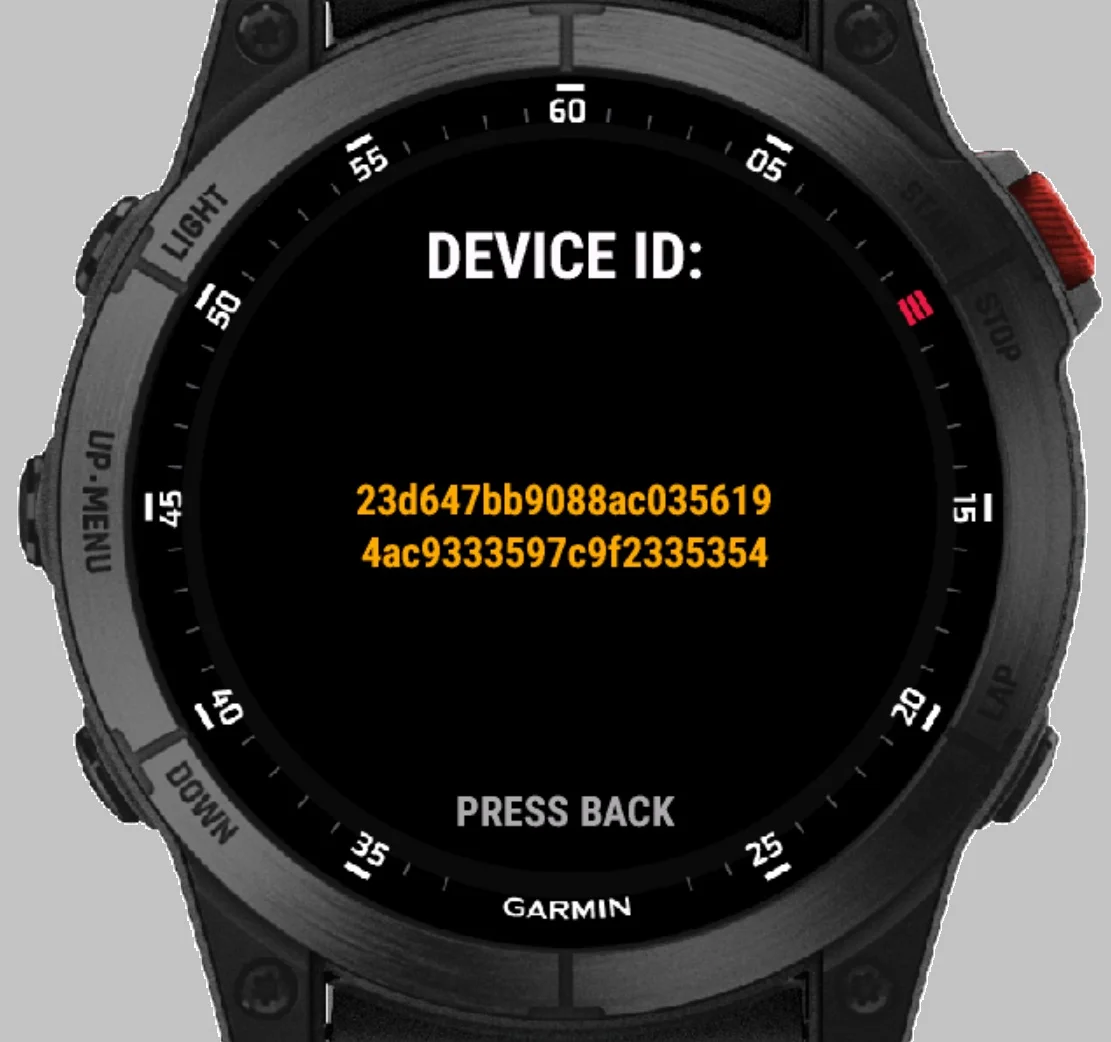
Safely eject the watch. Open the Guardian Protocol app on your watch, find your Device ID, and send it to the Telegram bot to link the device.
Command Example:
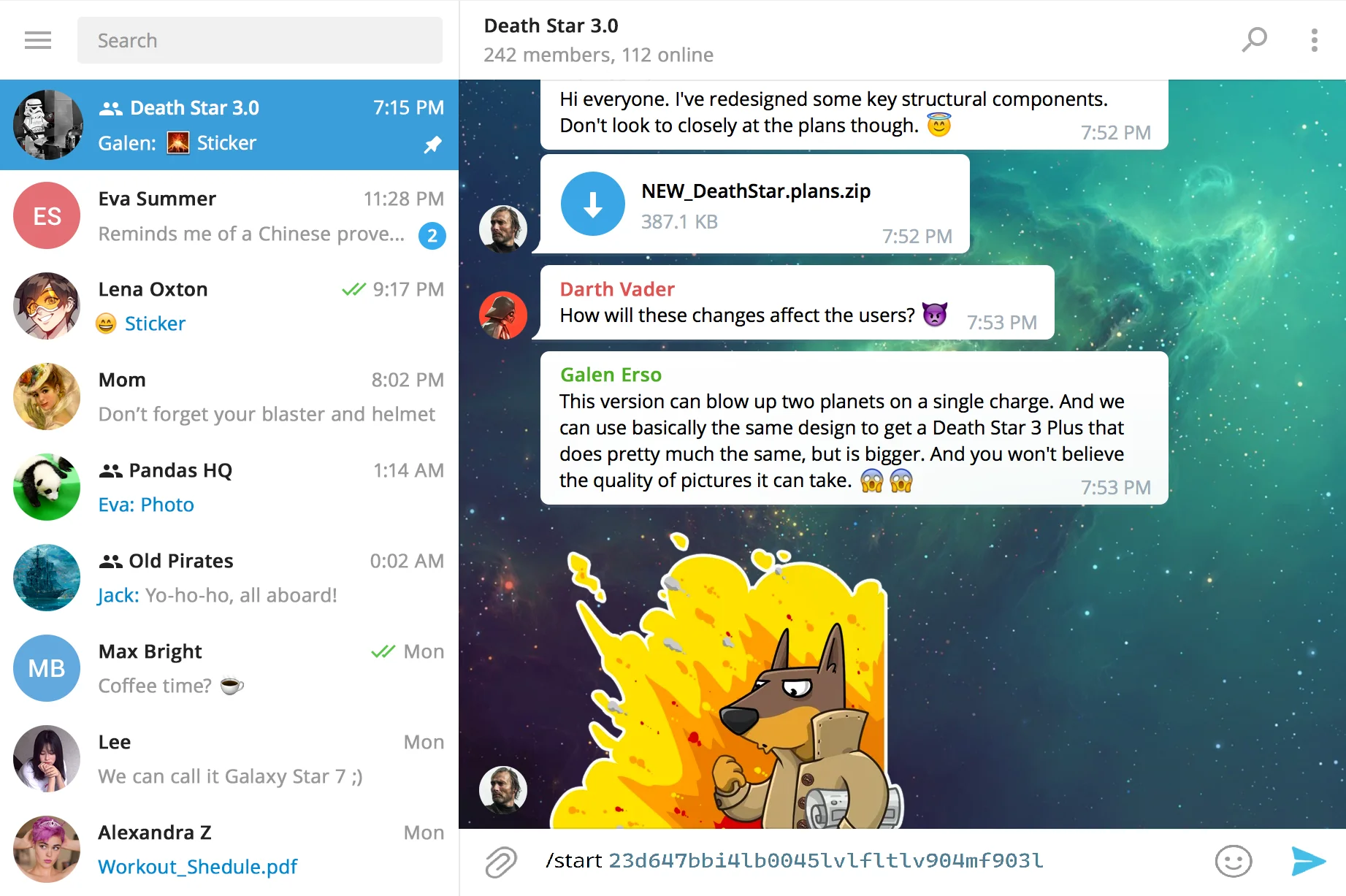
/start 123456789
Important
Ensure the Garmin Connect app remains open (minimized) on your smartphone at all times to prevent connection loss.
Telegram Activation
Your Garmin watch communicates through our secure Telegram gateway. You must link your device to a response channel:
Open @Guardian_Security_Bot →- ● Create a Private Group: Add your family or security team to a new Telegram group.
- ● Add the Bot: Invite the bot you just opened to this group.
- ● Grant Permissions: Make the bot an Administrator so it can post emergency alerts.
Device Pairing
Link your hardware to the protocol:
- ● Find your ID: Long-press UP on your watch to see your unique ID in gold.
- ● Link Command: In your Telegram group, type:
/start YOUR_ID - ● Confirm: The bot will confirm the link. You are now ready to activate Escort Mode.
Video Briefing
Visual guide: Interface navigation and emergency triggers
Operational Mode
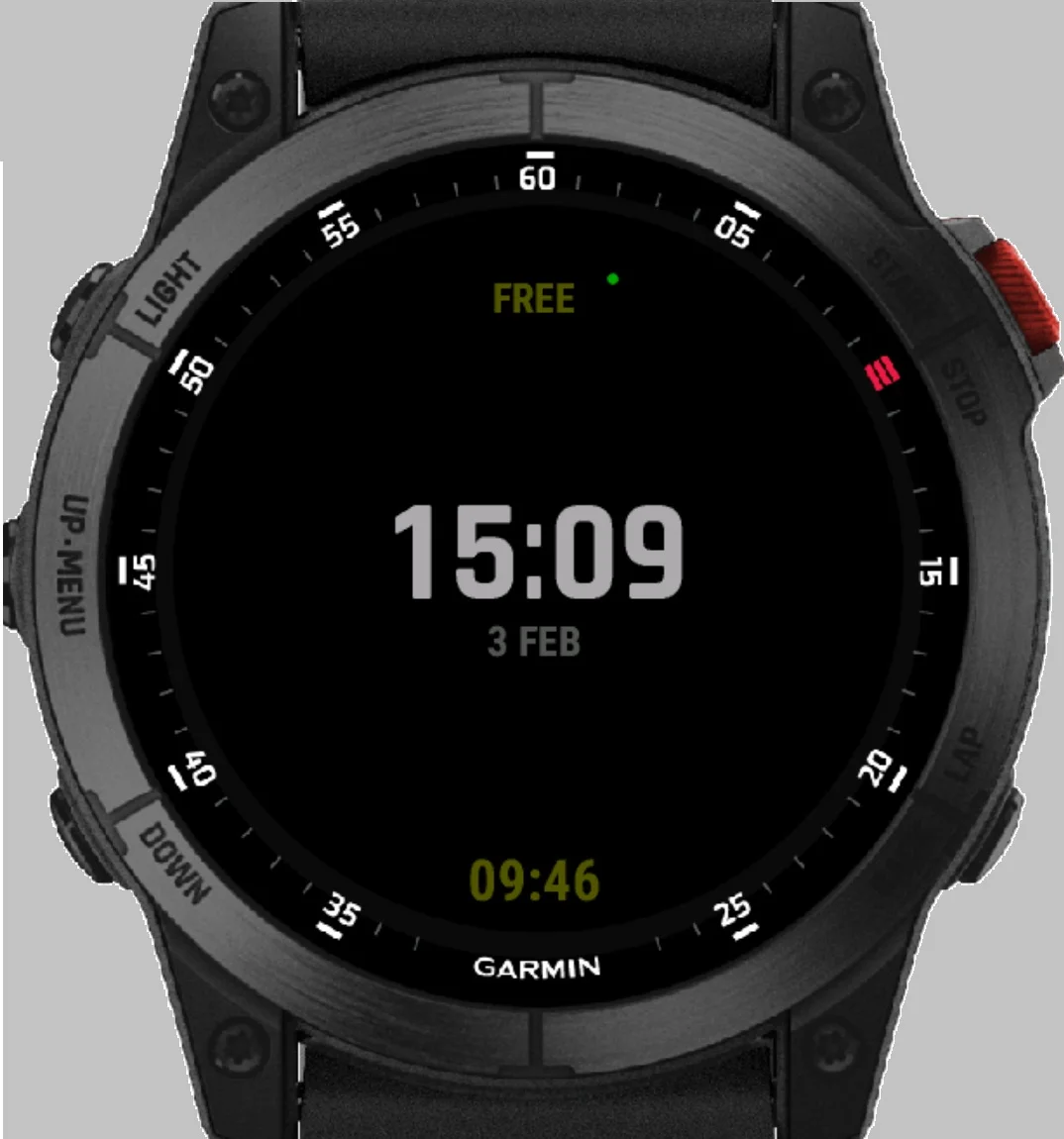
Single Click UP
Manual SOS (Silent Activation). Sends an immediate emergency alert.
Double Click UP
"I'm OK" Check-in. Confirms status, notifies the group, and resets the loop timer.
Back Button (Bottom Right)
Graceful Exit. Safely terminates the monitoring session.
Automatic Emergency Triggers
The system will automatically trigger an SOS in the following scenarios:
GPS & Intelligent Tracking
Active Signal: Alerts include a live Google Maps link with your current coordinates.
Signal Loss: If GPS is lost (e.g., entering a building), the system sends the Last Known Position.
Drift Estimation: While GPS is lost, the app tracks your steps. The alert will show an Estimated Drift (e.g., ~150m from last fix) to help search parties narrow down your location.
Critical Requirements for Safety & Stability
1. Stealth Mode: Group Notification Settings
If an SOS alert is triggered (either manually or automatically), the bot will immediately send messages and location data to the group. If your phone is nearby or in the hands of an intruder, a loud notification sound could compromise your location or escalate a dangerous situation. Open the Telegram group settings and set notifications to "Muted" or "No Sound".
Your trusted contacts will still receive the loud alerts on their devices, but your phone will remain silent.
2. Connection Stability: Background App Refresh
Garmin watches communicate with the server through your smartphone's internet connection. To prevent signal loss: Many mobile operating systems (iOS and Android) automatically "kill" or suspend background apps to save battery. If the Garmin Connect app is closed by the system, your watch will lose its link to the server, and a "Connection Lost" alert may be sent to your group. Always keep the Garmin Connect app open in the background (minimized) while using Guardian Protocol.
If you have never experienced connection drops, you can ignore this, but for maximum reliability during high-risk activities, keeping the app active in the background is the gold standard.